Using Claude Code with PayPerQ
Learn how to integrate Claude Code, Anthropic's official AI coding CLI, with PayPerQ to access premium AI models.
What is Claude Code?
Claude Code is Anthropic's mega-popular command-line interface (CLI) and VS Code extension for AI-assisted coding. It's an agentic coding tool that lives in your codebase and helps you code faster through natural language commands.
Why Use PayPerQ with Claude Code?
Claude Code is normally accessed through a credit card subscription. By using PPQ's API key, you can avoid that and pay per use via crypto. Additionally, Claude code normally restricts you to Anthropic models only. With PPQ, you can use any one of our hundreds of models inside of Claude Code!
This guide contains two setup methods:
- 🖥️ CLI Setup Guide
- 📝 VS Code Extension Setup Guide
Step by Step Set Up for Claude Code CLI
1. Install Claude Code
The quickest way is the official native installer:
Windows (PowerShell):
powershellirm https://claude.ai/install.ps1 | iex
macOS / Linux:
bashcurl -fsSL https://claude.ai/install.sh | bash
Prefer npm? That works too (requires Node.js 18+):
bashnpm install -g @anthropic-ai/claude-code
For more installation information, visit the Claude Code documentation.
2. Get Your PayPerQ API Key
Navigate to ppq.ai/api-docs and copy your API key.
3. Configure Claude Code with PayPerQ
You need to tell Claude Code to send its requests to PayPerQ instead of Anthropic. There are two ways to do this — the settings.json method works on every operating system (including Windows), so we recommend it.
Option A — settings.json (recommended, works on Windows, macOS & Linux)
Claude Code reads a settings.json file in your home directory on every launch. Create it (if it doesn't already exist) and add an env block:
- Windows:
C:\Users\<YOUR_USERNAME>\.claude\settings.json - macOS / Linux:
~/.claude/settings.json
json{ "env": { "ANTHROPIC_BASE_URL": "https://api.ppq.ai", "ANTHROPIC_AUTH_TOKEN": "sk-YOUR_PPQ_API_KEY_HERE", "ANTHROPIC_API_KEY": "" } }
Windows tip: The
.claudefolder may not exist yet — create it, then createsettings.jsoninside it. In File Explorer you can make the folder by typing%USERPROFILE%\.claudeinto the address bar. Make sure the file is named exactlysettings.json(notsettings.json.txt).
Option B — Shell environment variables (macOS & Linux)
If you're on macOS or Linux, you can instead add these to your shell configuration file (.bashrc, .zshrc, etc.) to make them persistent:
bashexport ANTHROPIC_BASE_URL="https://api.ppq.ai" export ANTHROPIC_AUTH_TOKEN="YOUR_PPQ_API_KEY_HERE" # Replace with your own key, it starts with sk- export ANTHROPIC_API_KEY=""
Important: In either option, replace sk-YOUR_PPQ_API_KEY_HERE with your actual PayPerQ API key from ppq.ai/api-docs. Setting ANTHROPIC_API_KEY to an empty string is intentional — PayPerQ authenticates with the ANTHROPIC_AUTH_TOKEN (sent as a Bearer token), and leaving ANTHROPIC_API_KEY empty prevents a stale key from overriding it.
Tip: After saving, fully close and reopen your terminal (and VS Code, if you use it) so the changes take effect.
4. Launch Claude Code
Navigate to your directory and run this command:
bashclaude
Claude Code will analyze your codebase and be ready to assist with your coding tasks.
5. Verify Your Setup
Once you start using Claude Code with PayPerQ, you can verify that requests are being processed by checking your usage history at ppq.ai/account-activity.
Step by Step Set Up for VS Code
Easiest option: the VS Code extension reads the same
~/.claude/settings.jsonfile as the CLI. If you already followed Step 3, Option A above, you're done — just restart VS Code and skip to verifying. The steps below are the extension-only alternative.
1. Install the Claude Code Extension
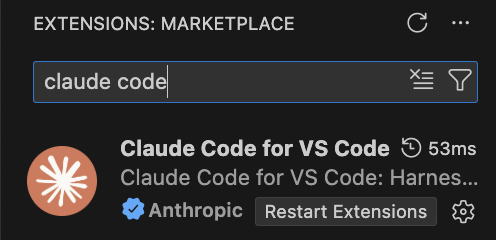
Open VS Code and navigate to the Extensions marketplace. Search for "Claude Code" and install the official extension from Anthropic.
2. Open Extension Settings
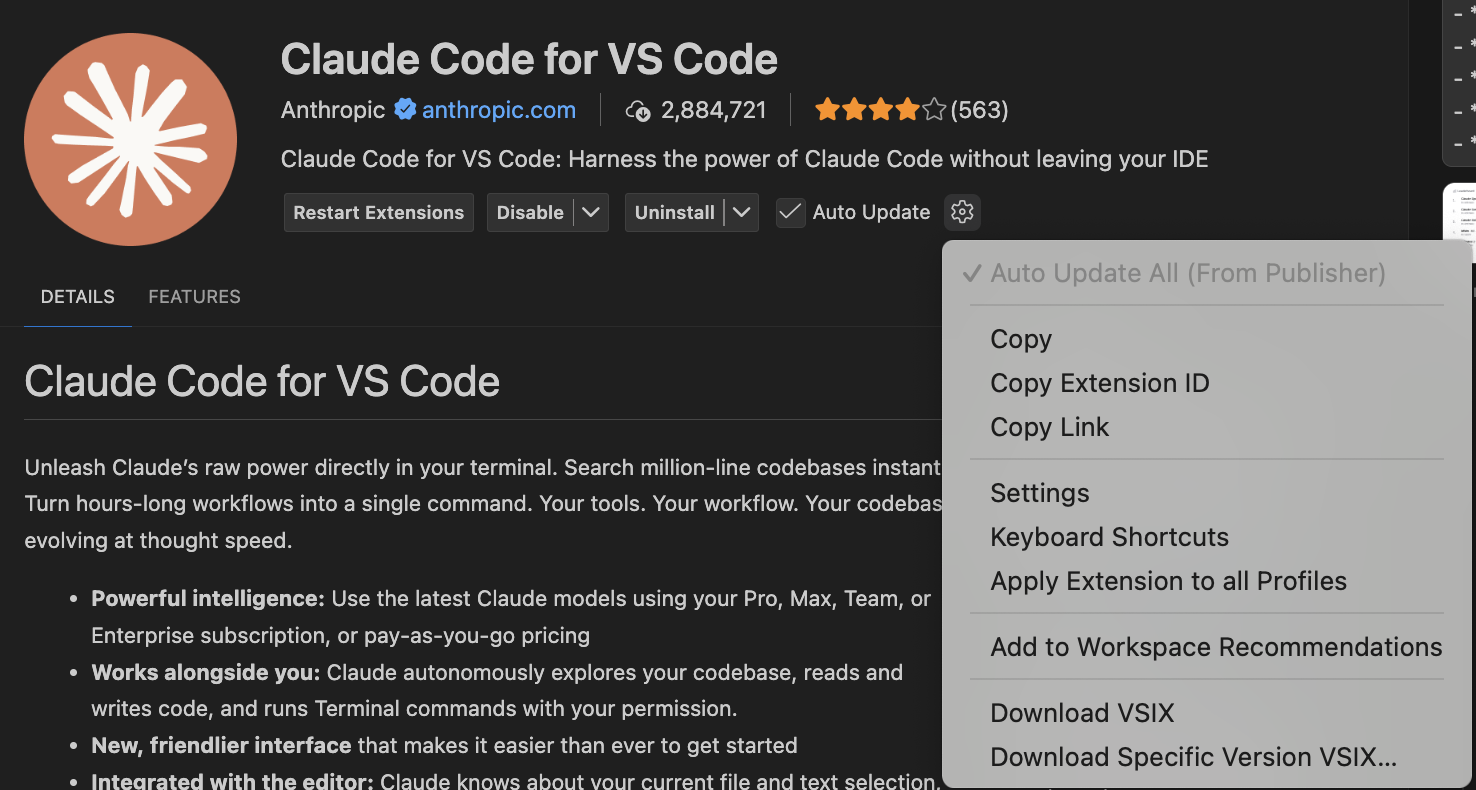
After installing the extension, click on the gear icon next to the Claude Code extension and select "Extension Settings" to configure it.
3. Configure Environment Variables
In the settings, locate the "Env" section. Here you'll add two environment variables to point Claude Code to PayPerQ's API:
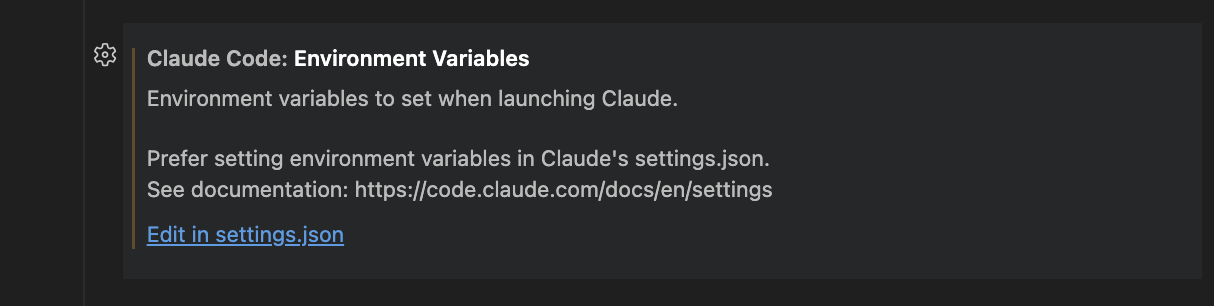
Add the following variables:
- ANTHROPIC_BASE_URL:
https://api.ppq.ai - ANTHROPIC_AUTH_TOKEN:
sk-YOUR_API_KEY_HERE
Important: Replace sk-YOUR_API_KEY_HERE with your actual PayPerQ API key from ppq.ai/api-docs.
4. Save Your Settings
Your settings file should look similar to this:
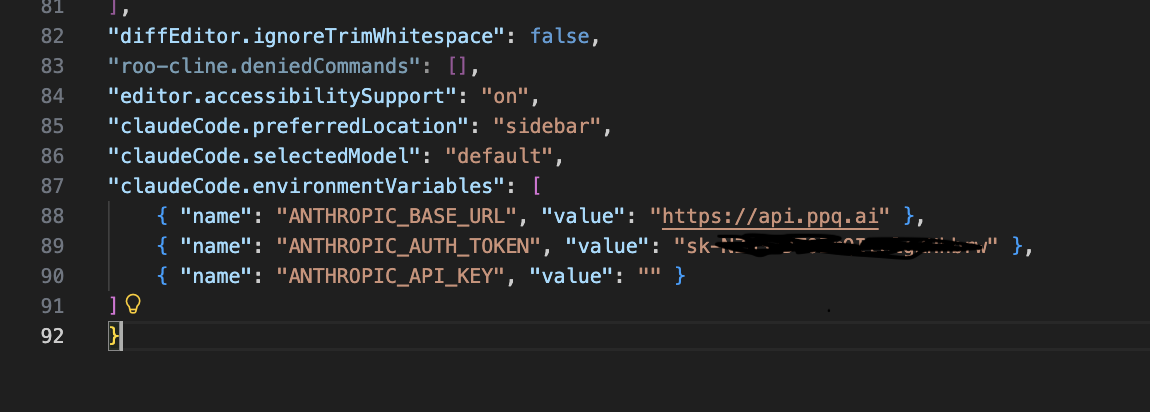
Your environment variables should look like this:
json{ "name": "ANTHROPIC_BASE_URL", "value": "https://api.ppq.ai" }, { "name": "ANTHROPIC_AUTH_TOKEN", "value": "sk-YOUR_API_KEY_HERE" }, { "name": "ANTHROPIC_API_KEY", "value": "" }
Once configured, Claude Code will now use PayPerQ's API for all requests, giving you access to multiple AI models with pay-per-use pricing.
5. Verify Your Setup
Start using Claude Code in VS Code and check your usage history at ppq.ai/account-activity to verify that requests are being processed through PayPerQ.
Using Custom Non-Anthropic Models
By default, Claude Code uses Anthropic models (Sonnet, Opus, Haiku). To use other models available on PayPerQ, you'll need to configure additional environment variables.
CLI Configuration
Add these variables to your shell configuration file (.bashrc, .zshrc, etc.):
bashexport ANTHROPIC_DEFAULT_OPUS_MODEL="moonshotai/kimi-k2.6" # Sets the powerful/coding model export ANTHROPIC_DEFAULT_SONNET_MODEL="moonshotai/kimi-k2.6" # Sets the balanced model export ANTHROPIC_DEFAULT_HAIKU_MODEL="google/gemini-3-flash-preview" # Sets the fast/lightweight model
Then restart your terminal and launch Claude Code with claude.
VS Code Configuration
In your VS Code settings (Extension Settings > Env section), add these environment variables:
json{ "name": "ANTHROPIC_DEFAULT_OPUS_MODEL", "value": "moonshotai/kimi-k2.6" }, { "name": "ANTHROPIC_DEFAULT_SONNET_MODEL", "value": "moonshotai/kimi-k2.6" }, { "name": "ANTHROPIC_DEFAULT_HAIKU_MODEL", "value": "google/gemini-3-flash-preview" }
You can replace the model values with any model from the list below or from the full model list.
Some good non-Anthropic Models
We recommend using the default Anthropic models for this tool though, but here are some other good options as well:
- moonshotai/kimi-k2.6 - Moonshot AI's advanced multimodal coding model
- xiaomi/mimo-v2-flash - Xiaomi's free coding model
- mistralai/devstral-2512 - Mistral AI's development model
- kwaipilot/kat-coder-pro - Kwaipilot's professional coding model
- google/gemini-3-flash-preview - Google's latest multimodal AI
- z-ai/glm-4.7 - Z-AI's powerful model
- minimax/minimax-m2.1 - MiniMax's advanced model
- x-ai/grok-code-fast-1 - X.AI's rapid coding model
- And many more premium models
Using Private (TEE) Models with Claude Code
Want fully private, end-to-end encrypted coding? PayPerQ's private TEE models run inside secure hardware enclaves — your prompts are encrypted on your machine and not even PayPerQ can read them. You can use them directly inside Claude Code.
Because private models require client-side encryption, you point Claude Code at our local ppq-private-mode proxy instead of api.ppq.ai. The proxy exposes a native Anthropic endpoint (/v1/messages), so Claude Code works with it out of the box — including tool use and streaming.
1. Start the proxy
In its own terminal (requires Node.js 20+ and your PPQ API key):
bashPPQ_API_KEY=sk-YOUR_API_KEY_HERE npx ppq-private-mode
Leave it running. It starts on http://127.0.0.1:8787 and prints a ready message once enclave attestation succeeds.
2. Point Claude Code at the proxy
Set these environment variables (in your shell, or the VS Code extension's Env settings), then launch claude:
bashexport ANTHROPIC_BASE_URL="http://127.0.0.1:8787" export ANTHROPIC_AUTH_TOKEN="sk-YOUR_API_KEY_HERE" # your PPQ API key export ANTHROPIC_MODEL="private/glm-5-3" # main model export ANTHROPIC_DEFAULT_HAIKU_MODEL="private/glm-5-3-flash" # background tasks
Use private/glm-5-3 for Claude Code. Claude Code drives everything through tool calls, and private/glm-5-3, private/glm-5-3-flash, private/gpt-oss-120b, and private/llama3-3-70b all support tool calling on the private enclave. private/kimi-k3 advertises tool-calling support as well. Every request Claude Code makes is end-to-end encrypted to the PayPerQ enclave.
Get the Most Recent Models
Want to see all available models? You can fetch the most up-to-date list directly from PayPerQ's API:
bashcurl https://api.ppq.ai/v1/models
This endpoint returns a JSON list of all currently available models on PayPerQ.
Tips for Best Results
- Choose the right model: Use specialized coding models for programming tasks
- Monitor your usage: Check your PayPerQ dashboard to track API usage and costs
- Experiment: Different models excel at different tasks—try a few to find your favorite
Troubleshooting
API Error: 401 · Please run /login / "Invalid authentication credentials"
This almost always means Claude Code isn't picking up your PayPerQ configuration, so it's trying to reach Anthropic directly instead of PayPerQ. Check the following:
- Confirm the variables are actually applied. On Windows, editing a shell file does nothing — use the
settings.jsonmethod in Step 3, Option A. On macOS/Linux, make sure you opened a new terminal after editing.bashrc/.zshrc. - Check your
ANTHROPIC_BASE_URLis exactlyhttps://api.ppq.ai(no trailing slash, no/v1). - Make sure your key is in
ANTHROPIC_AUTH_TOKEN(notANTHROPIC_API_KEY), and thatANTHROPIC_API_KEYis empty. - Clear any old login. If you previously signed in with an Anthropic account, run
/logoutinside Claude Code (or delete the.claude.jsonfile in your home folder), then restart so your PayPerQ key is used instead.
Problems?
Please contact us through the customer communication chatbot in the bottom right or in our telegram channel!